Phone
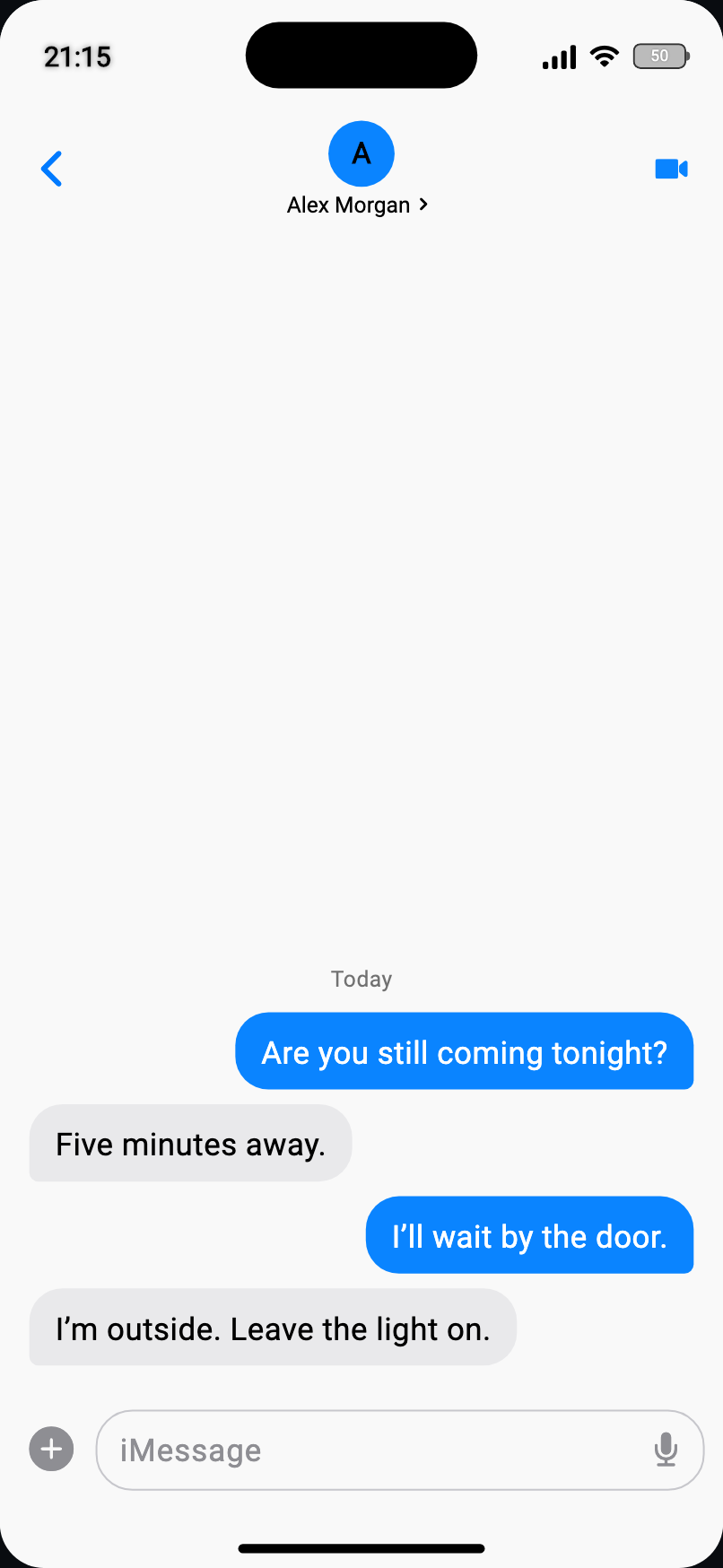
Build a message conversation
Choose prepared messages or improvise a conversation live.
Add a message cue
In Build, choose Add action and the incoming-message option. Choose handset messages or WhatsApp, then select your contact.
Choose the direction
Receive a message makes a message arrive on the prop. Send a preset message makes it appear sent from the prop without the actor typing it.
Write and preview it
Enter the text, set its initial delay and add the cue to the scene. Preview it to check the name, photo, text size and appearance.
Add earlier messages if needed
Use Previous conversation on the message cue to add history. These lines appear as earlier messages, so the thread does not have to look brand new.
Add planned follow-ups
Use Continue conversation to add further lines inside the cue. Choose whether each waits for an actor reply, a timed delay, or Next Cue. Next Cue works through those lines before leaving the conversation.
Or improvise instead
Choose a Live Conversation action when you want to type as the contact from the controller while the actor replies on the prop. This is a live exchange, not a list of prepared message cues.
Early-access guide · Updated 9 November 2026. Button wording can vary between builds. If you cannot find a control, include your build number when asking for help.