CUEDITORY / AUDIO
Audio features
Create clips from recordings, adjust their levels and choose where they play. Expand a feature below for details.
01 / PREPARE
Create and edit cues
Import a recording
Bring an audio file into the project and create individual clips from it. Keep the source available so you can revisit the edit.
Select the line in the transcript
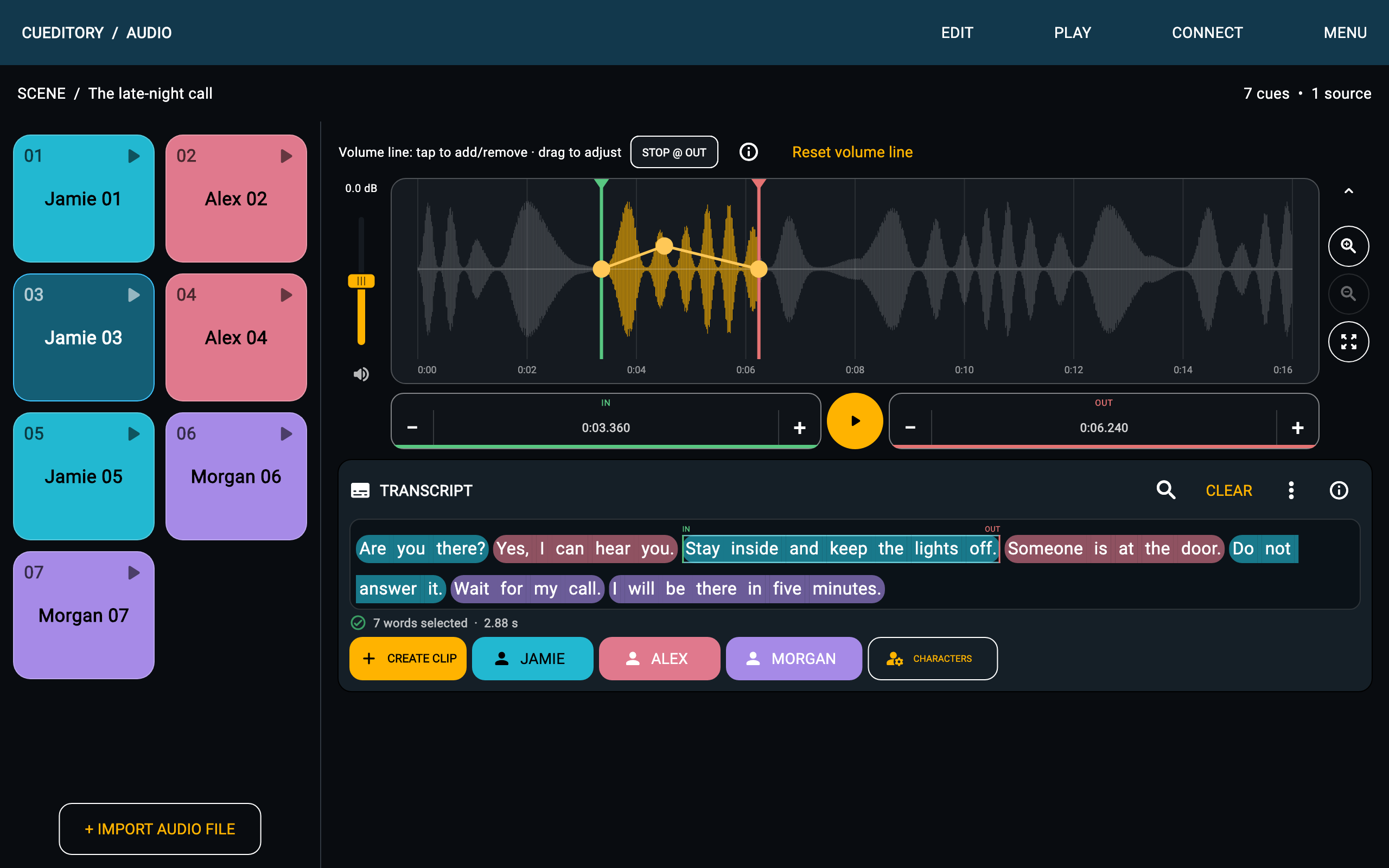
Transcribe dialogue, find words and select the passage you need. Create a cue from the selection, then listen and refine its boundaries against the recording.
Trim on the waveform
Set the in and out points visually, zoom into the selection and use the time controls for finer adjustments. Preview the edit before returning to playback.
Organise by scene and character
Name and colour cues, assign dialogue to characters and reorder the sequence. Character colours help you recognise who speaks next.
02 / SHAPE THE LEVEL
Adjust levels within a cue
Use the yellow volume line to correct a change in level within a recording. Add points, raise or lower them and shape the transition between neighbouring points.
Adjust a complete section by dragging the line between its points. Use the cue’s overall gain and fade controls alongside the envelope.
Illustration of a level adjustment; the waveform editor above shows the actual controls.
03 / CHOOSE THE OUTPUT
Audio routing
The controller is the device you press cues on. A prop is another device running Cueditory. Choose this device, one or more connected prop devices, or any combination. Select each device by name.
LOCAL PLAYBACK / YOUR EXISTING SOUND ROUTE
Use the controller’s own speaker, or feed suitable external equipment from its audio output. The external mixer or transmitter handles the onward route; Cueditory does not send directly to an IEM receiver.
PROP PLAYBACK / SOUND AT THE HANDSET
Sync the project before the take. Cue files play on the prop; Live Talk is a separate streamed microphone feed. Earpiece and external-output behaviour depend on the device and audio settings.
COMBINED PLAYBACK / SELECTED DEVICES
Default starts each selected device as soon as it is ready. Synchronised prepares devices before aiming for a shared start, adding a wait. Hardware output latency can still differ; this is not sample-locked playback.
04 / LIVE TALK
Live Talk and microphone return
Live Talk targets the chosen prop device. These are two separate live audio paths. Use either direction on its own, or enable both when the setup calls for it.
Talk to prop
For an off-camera voice or live direction delivered to the handset.
Listen to prop
A microphone return from the prop—not a separate, clean copy of its cue file.
05 / DURING THE TAKE
Playback controls
Individual cues or Next Cue
Tap a specific clip when the performance changes, or step through the prepared sequence. Link adjacent cues where a planned progression is useful.
Pause, stop and fade
Use the playback controls to pause a moment, fade a cue in or out, and stop playback. Prepare cue-level fades before the take.
Playback timing and preparation
Choose responsive Default playback or the preparation-first Synchronised mode. Cue preparation reduces work at playback time; the available controls depend on the device.
USB output preparation
Advanced keep-alive options let you test digital silence or tone modes with external audio hardware. Validate the exact adapter, mixer and output you intend to use.
PHONE FEATURES
Calls and messages
Add an incoming call, a prepared message or a live conversation with Cueditory Phone. Use Complete when you want both in one workspace.