CUEDITORY / PHONE
Phone features
Prepare calls, messages and phone screens for an actor to use. Trigger them remotely or run a project on the prop itself. Expand a feature below for details.
01 / CALLS
Calls and contacts
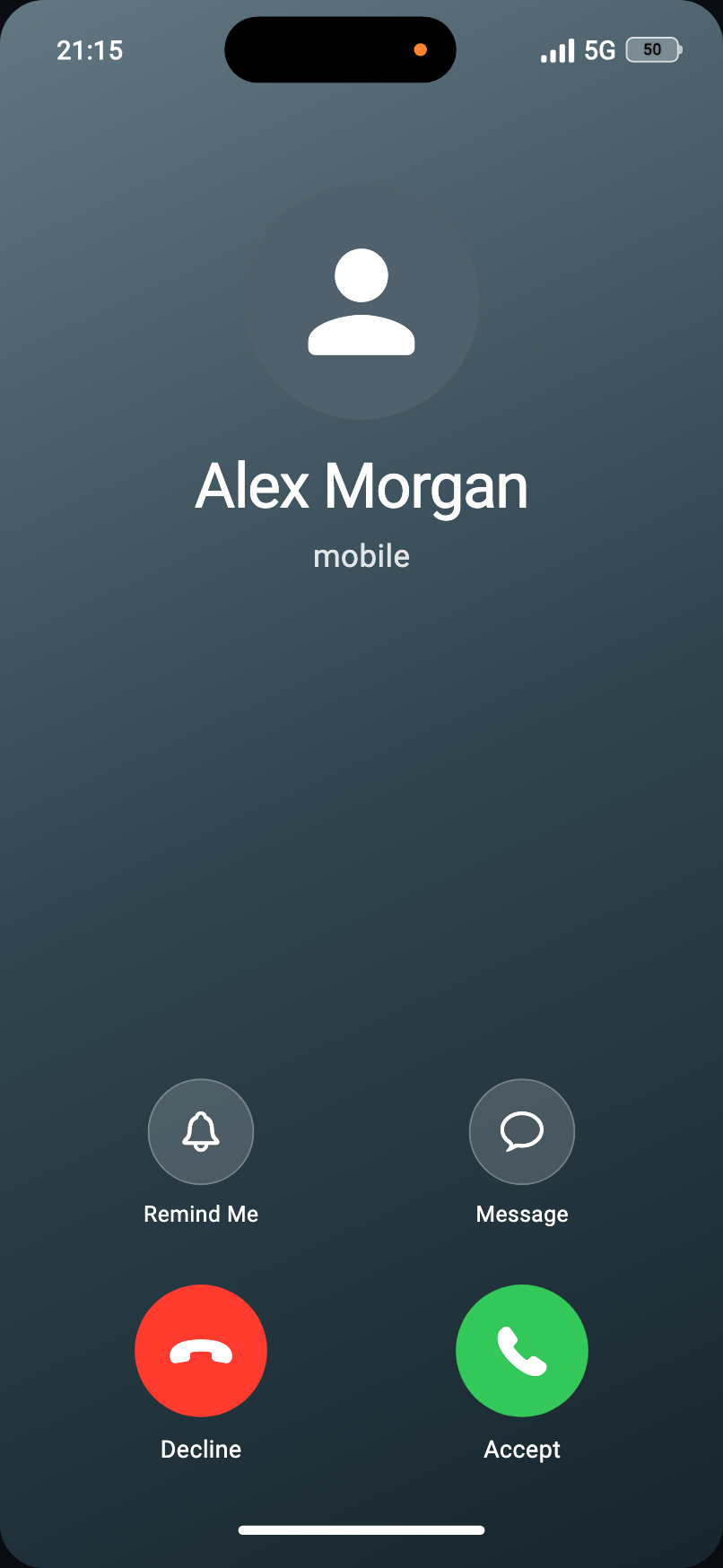
Build phone actions as cues, preview them silently in the editor and trigger them on the selected prop during the take. These are simulated interactions, not real telephone calls.
Incoming voice calls
Choose a contact and ringing delay, then select ring, vibration or both. The actor can answer using the controls presented by the chosen phone style.
Outgoing calls and call endings
Prepare an outgoing-call action or let the actor use the simulated contacts and keypad. End a call on cue and return to the phone flow.
Simulated video calls
Use supplied image or video media for the other caller and the device’s live camera for self-view. Configure the picture-in-picture position and scale. This does not call FaceTime or connect to a real video-call service.
Contact names and photos
Set up fictional names, descriptions and contact photos. Reuse contacts across cues so calls and message threads carry a consistent identity.
02 / MESSAGES
Messages
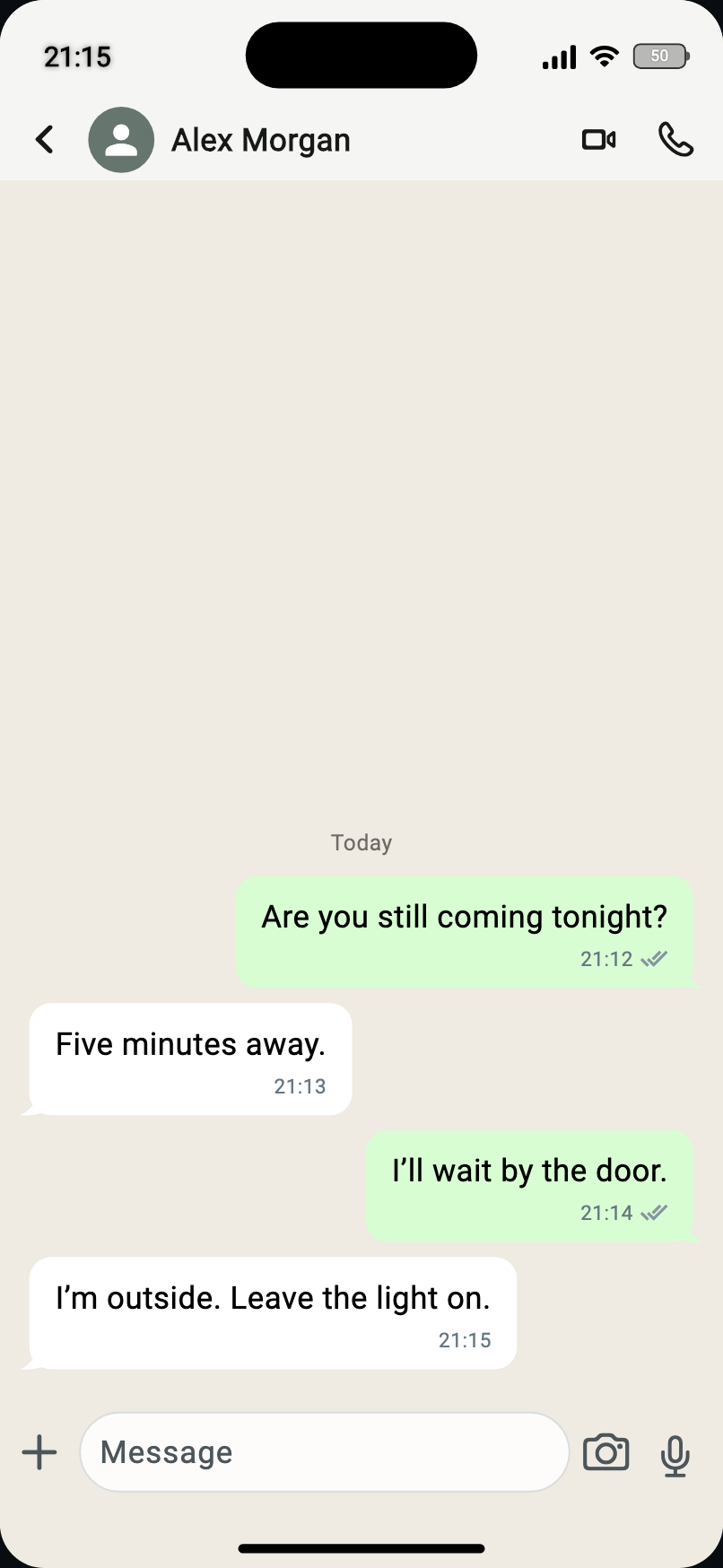
Choose handset messages or a WhatsApp-style message. The selected phone theme supplies the surrounding look. Set the text, contact, notification sound and timing before the take.
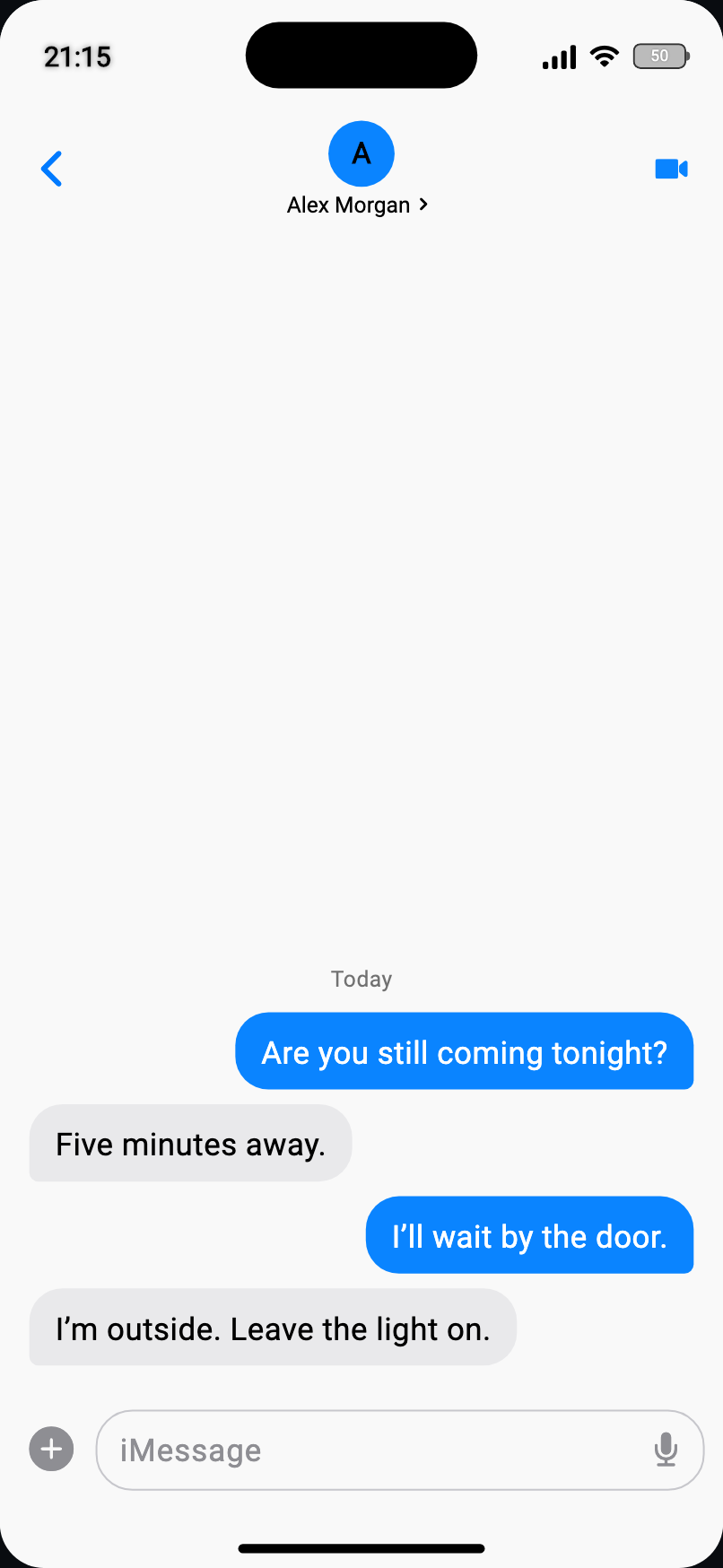
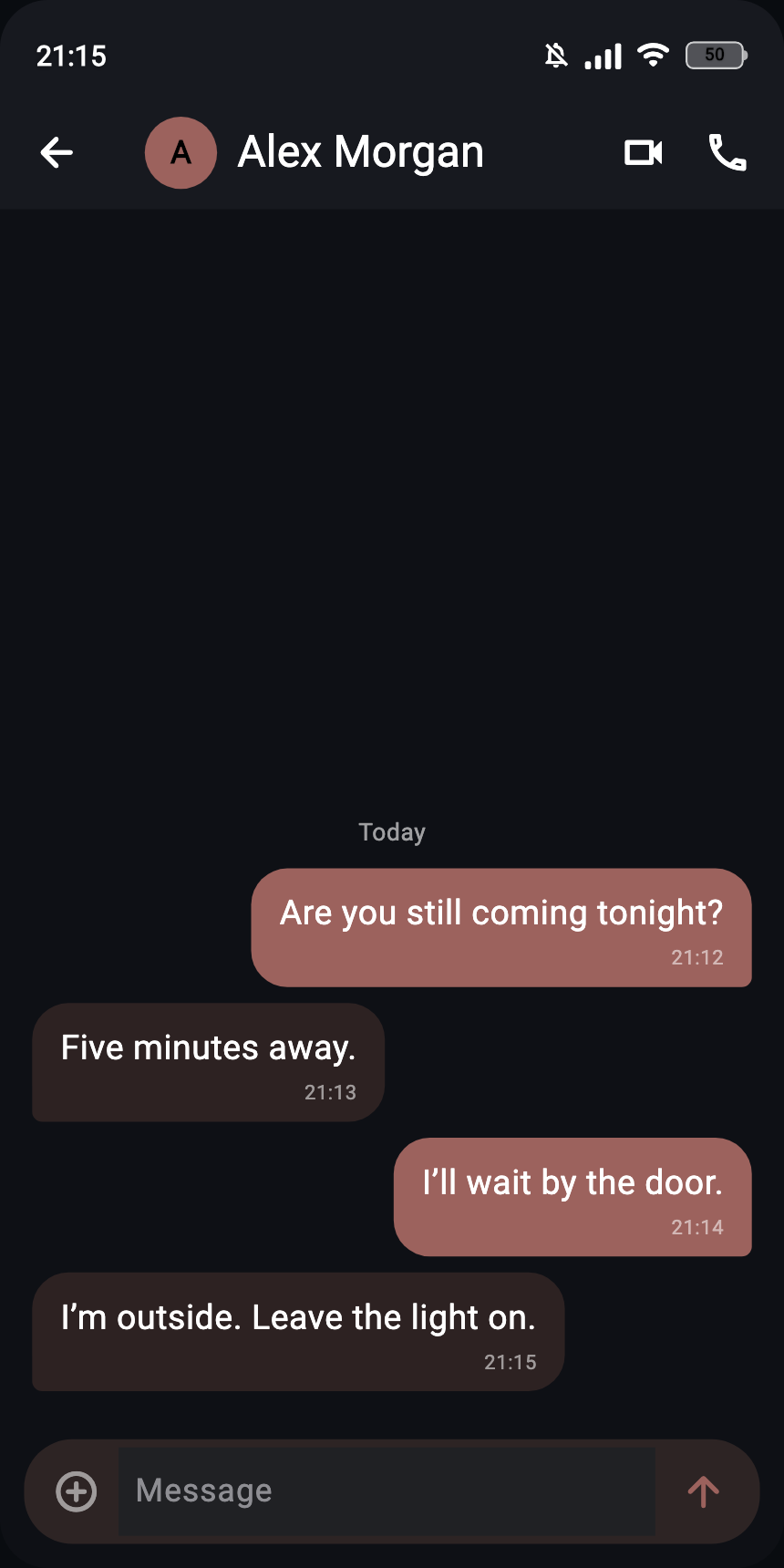
Screens captured from the app’s current preview components. Fictional contacts and dialogue; appearance continues to be refined through testing.
Incoming notifications
Show an incoming message notification, then let the actor open the thread. Notification preview settings control how much text is visible.
Previous messages
Add previous incoming and outgoing messages with their times. The conversation can look established before the first new message arrives.
Adjustable text size
Adjust message and notification text size for camera readability. Include a contact photo and, where the cue supports it, a message image.
03 / SCRIPTED OR IMPROVISED
Prepared and live conversations
A prepared conversation and a live conversation solve different on-set needs.
Prepared conversation
Keep follow-up lines inside the same cue. Each next message can wait for the actor’s reply, arrive after a timed delay, or wait for a Next Cue command.
- Incoming: “Are you outside?”
- Trigger: Actor replies
- Follow-up: “Use the side door.”
Example sequence. You choose the lines and triggers.
Live conversation
The operator writes messages on the controller during the take. They appear on the prop as messages from the selected fictional contact. The actor’s typed replies return to the operator.
“Where are you?”
↕PROP / ACTOR“At the door. It’s locked.”
An improvised text exchange between operator and actor.
04 / PREPARE THE LOOK
Phone appearance
Phone-style presets
Choose iPhone-style, Android-style or clean light/dark looks. The iPhone 15 / iOS 18 preset is the current reference for the Apple-style simulation. Check your required shot against the intended device.
Scene appearance and cue overrides
Set the phone’s appearance for the scene, then override the phone style for an individual cue when needed. Keep the rest of the sequence consistent.
Home and lock screens
Choose separate wallpaper images, dimming, visible app icons and widgets. Configure the lock-screen clock and date, simulated unlocking and Face ID / PIN-style behaviour.
Time and continuity
Set scene time and date rather than relying only on the real device clock. Prepare the display for repeat takes and the story’s time of day.
Live camera and photos
Open the device’s live camera from the simulated phone, switch cameras and take a picture. Camera access requires permission and supported hardware.
Graphics and VFX screens
Display an imported image or solid colour. Adjust image fit, screen brightness, tracking markers and grid options for the shot.
05 / ON THE ACTOR’S PHONE
Running the prop
Remote cue control
Connect the prop to a controller on the same local Wi-Fi. Sync the project, enter Run on the prop and trigger the selected cue from off camera.
Run a local project
Prepare this device as the prop when no separate controller is needed. Enable starting the first cue on Run if you want the scene to begin automatically, including its configured delay.
Optional actor cueing
While Run is active, an empty-background tap can advance cues. Android supports volume-button cueing; supported iOS devices can use the Next Cue shortcut, with Back Tap assigned separately in iPhone settings.
Actor interactions
Answer calls, open messages and type replies within the simulated phone. Background-tap cueing leaves phone buttons and message interactions available. The reserved four-tap exit returns you from Run.
AUDIO FEATURES
Audio playback
Use Audio for prepared voices and sound cues, or select Complete to control sound and phone actions together.