Phone
Make your first phone call scene
Create a pretend incoming call that an actor can answer.
Choose Phone mode
Tap the mode badge at the top left and choose Phone. Open Build.
Choose the phone look
Open Scene Settings and the phone appearance controls. Choose the phone style for your scene.
Add a call
Return to Build and tap Add action. Choose an incoming call.
Choose who is calling
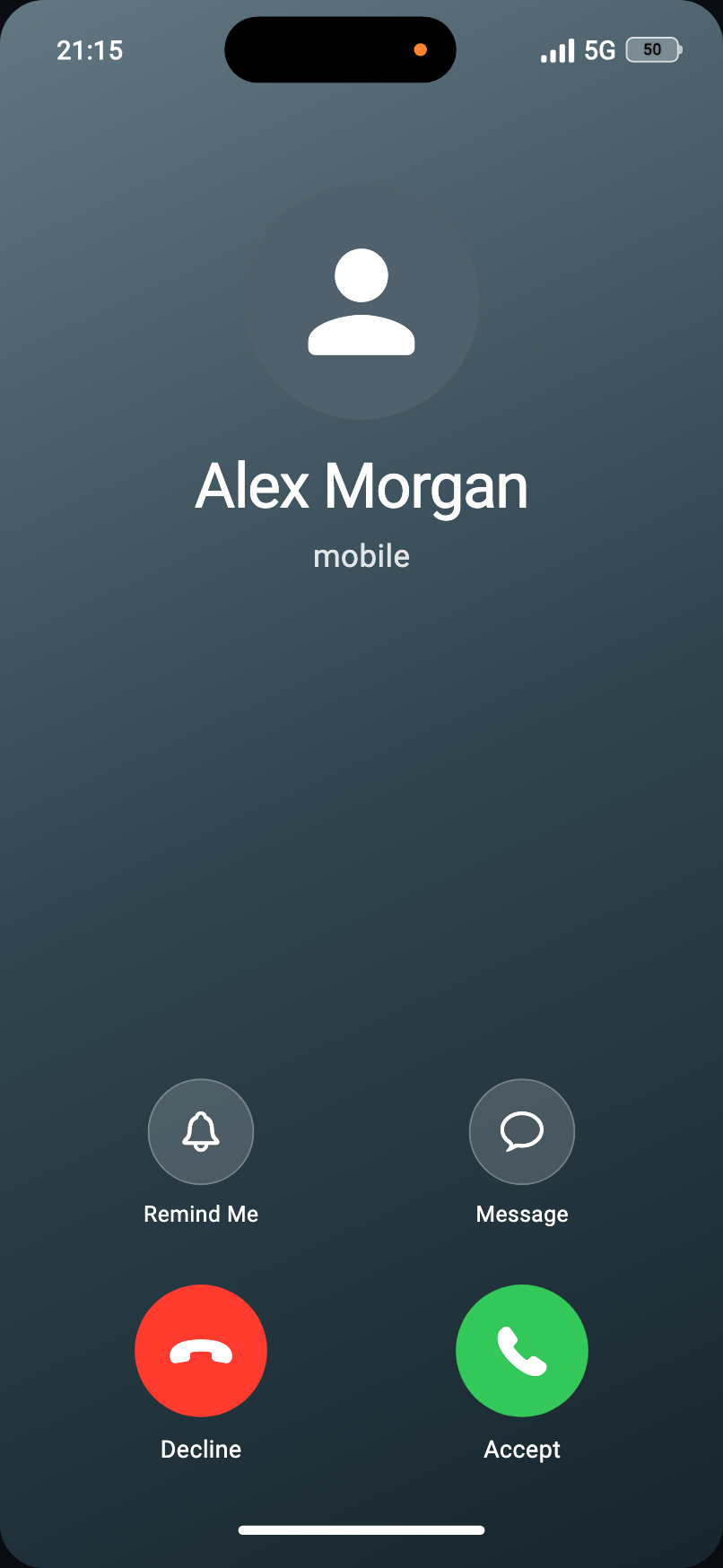
Choose a contact. Use Manage contacts to add a name and, if needed, a photo. Set the call type, alert and delay before ringing.
Add and preview the cue
Complete Add to scene. Select the cue and use Preview cue to check its appearance. The editor preview is silent and does not trigger a connected phone.
Try it on the prop
Follow the single-device or connection guide below. Once the prop is ready, trigger the call cue and answer it on the prop screen.
Early-access guide · Updated 9 November 2026. Button wording can vary between builds. If you cannot find a control, include your build number when asking for help.