Audio
Play your first sound
Make a short cue from a recording, then play it on the device in your hand.
Choose Audio mode
Tap the Cueditory mode badge at the top left and choose Audio. Open Edit.
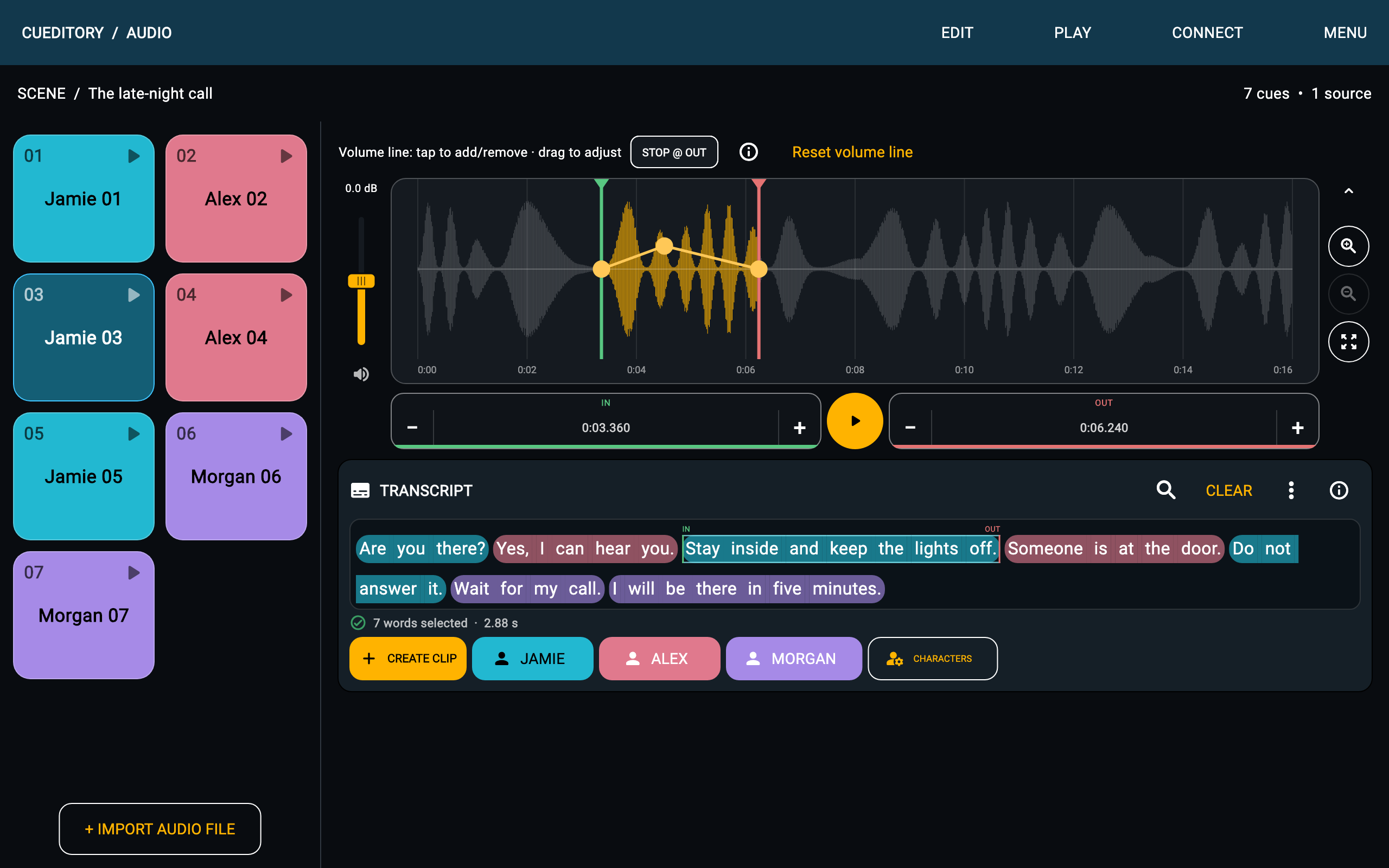
Open your recording
Tap Import audio file and choose your recording. Wait for it to finish loading.
Choose the part you want
Select words in the transcript, if one is available, or adjust the In and Out markers on the waveform—the picture of your sound. In is the start; Out is the end.
Listen before saving
Press the preview play button. Adjust the start and end if a word is cut off or there is too much silence.
Make a cue
Tap Create clip. Complete the name and colour choices shown. The new clip appears in your cue list.
Connect a prop device, if you want to use one
Only playing on the device in your hand? Skip to the next step.
To play on another phone or tablet, join both devices to the same Wi-Fi or hotspot. On the other device, open Prop Device mode with Project Source set to Remote. On your controller, open Connect → Find devices, choose the prop and wait for the project to finish syncing.
Need a hand? Follow Connect another phone or tablet, then return here.
Choose where to play, then tap your cue
Open Play. With no prop connected, tap your cue to play it on this device—you do not need an output selector.
Once a prop is connected, use the output row to select This Device, the connected prop devices you want, or a combination. Then tap your cue. Start with a comfortable, low volume.
Early-access guide · Updated 12 November 2026. Button wording can vary between builds. If you cannot find a control, include your build number when asking for help.